The batch form of the Manage tab's Import Civil 3D Styles. Civil 3D ships that feature as a dialog and nothing else: no command-line form, no managed API, so it does one drawing at a time and cannot be scripted or looped. This pushes a template's styles, and optionally its drawing settings, into the current drawing, every drawing open in the session, or every DWG in a folder.
Mechanism / Replace
Families / Add-only
Safety rail
What comes across
- Styles, every family the template holds, including the ones the Civil API does not expose as properties: pressure pipe styles arrive like everything else.
- What a style references, the text style a label style uses, the block a marker style points at, the expressions a band style evaluates. Imported styles therefore look the same in the target as in the template, instead of re-binding to whatever happened to share a name.
- Drawing settings, each its own checkbox and all OFF by default: units & zone · object layers · abbreviations (alignment / profile / superelevation / cant) · ambient formats (precision, rounding, unit display). Off by default because they change how new objects get built and how values display, not how existing ones look.
- Layers the object-layer settings name, any the target lacks are copied from the template, colour and linetype included, so the setting does not point at nothing.
- Not per-command settings (the Settings tab's command tree). Not exposed by the API in any enumerable form; never touched.
Guidance
- Run it from a Civil 3D drawing. The Civil 3D style API is only available with a drawing open, so the tool needs one, that is why there is no “pick two files” mode.
- Try one project folder before the server. Replace mode changes how existing objects look, immediately. That is the point, but see it happen on a folder you can afford first.
- A drawing nothing was imported into is NOT saved and is reported
NOT UPDATED, with the backup removed again. A run that changes nothing leaves the folder byte-for-byte as it was. - Point the template at the share copy and leave it there, or set
VDC_STYLEUPDATE_SETTINGSto one file so every seat starts from the office template without being told. - Purge afterwards (optional) runs the Civil 3D style purge in each drawing, so the near-duplicates a project accumulated do not survive beside the ones just imported. Styles actually in use are never purged.
- Backup copies (
.before-styleupdate-*) are skipped when a folder is listed, a re-run never imports into the previous run's undo. - Saves retry three times, two seconds apart, riding out the folder locks Desktop Connector / ACC put on a just-synced folder. A save that still fails leaves the file on disk unchanged and says so.
- Draft work product, a CSV per run in VDC Reports records, per drawing, what was added and what was replaced.
- Settings
%APPDATA%\VDC\StyleUpdate\settings.json(envVDC_STYLEUPDATE_SETTINGS), schema-tolerant.
Dialog
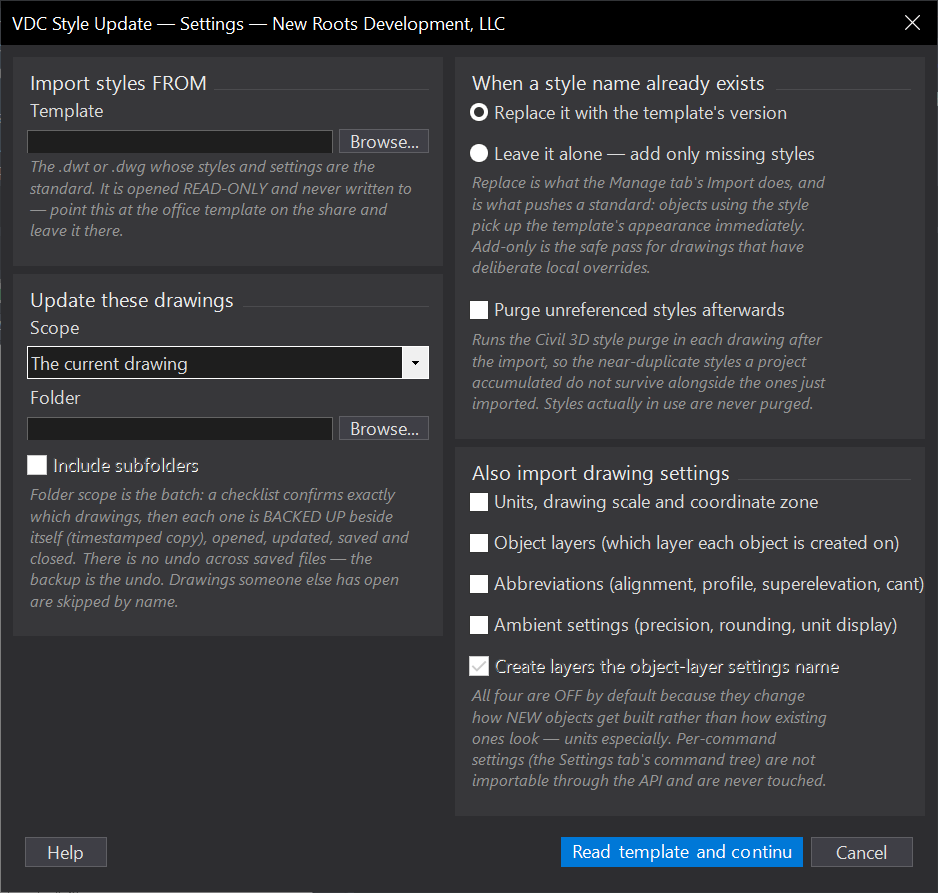
VDCSTYLEUPDATE
VDCSTYLEUPDATEWhen to use it
- The office template changed and the live projects are still on the old styles.
- A drawing arrived from outside and needs the house styles before anyone works in it.
- A whole sheet folder needs one label style corrected, and opening 40 drawings by hand is the alternative.
- Setting up a project folder from a template after the fact.
How to run it
- Run VDCSTYLEUPDATE from a Civil 3D drawing (the open drawing is what tells the tool where styles live).
- Browse to the template, pick the scope (current drawing / every open drawing / a folder), and set the import rules.
- On the second dialog, check the style families to bring across and - in folder scope - the drawings to update.
- Read the summary and the CSV: per drawing, how many styles were added and how many replaced.
- In current-drawing scope nothing is saved - SAVE to keep the import or UNDO to back it out.
Options
- Scope: the current drawing, every drawing open in this session, or every DWG in a folder (subfolders optional).
- Replace vs Add-only: Replace overwrites same-named styles with the template's, which is what pushes a standard; Add-only leaves existing styles alone and adds just the missing names.
- Style families: built from what the template actually holds, with a style count on each row - not a fixed list.
- Drawing settings: units/zone, object layers, abbreviations and ambient formats, each its own checkbox, all OFF by default.
- Create missing layers: a layer an object-layer setting names but the target lacks is copied from the template, colour and linetype included.
- Purge afterwards: runs the Civil 3D style purge in each drawing so replaced near-duplicates do not survive alongside the imported ones.
Watch out for
- Folder and open-drawing scope SAVE each file - there is no undo across a saved-and-closed drawing. Every file written is backed up beside itself first (.before-styleupdate-<timestamp>.dwg); the backup is the undo.
- Replace mode changes how existing objects LOOK, immediately - that is the point, but run one project folder first rather than the whole server.
- A drawing someone else has open is skipped by name. The lock is re-checked at write time, not just when the checklist was built.
- A drawing already open in this session is updated in memory and left UNSAVED - it is never closed underneath you.
- Importing units or ambient settings changes how NEW objects are built and how values display; that is why all four settings groups start off.
- Per-command settings (the Settings tab's command tree) are not importable through the API and are never touched - only drawing settings are.
- The template is opened read-only and never written to. Point it at the share copy and leave it there.
Related: Style QC · Super Clean · Standards QC · Drawing Scan