Drafts a plan-review submission email in Outlook or the OS default mail app: recipient, subject, and plan-set reference filled the same way every time from the open drawing's project; the draft is displayed for review, or sent on OK with the opt-in Send it immediately mode. The same mail engine powers VDCERROREMAIL (since 1.92.0): one click packages the machine's most recent Autodesk crash reports with a parsed summary in the body and drafts them to your CAD manager / support, the crash-triage funnel, without the folder hunt.
Draft window / headers
Subject template tokens
Picked plan path
{planpath}
Draft folder selected
Attach mode (Outlook)
What it does
- Fields from the drawing:
{project}(project folder),{drawing}(file name), and{date}(today) are pulled from the open DWG;{projectno}is entered per run. - Project root: derived by walking up from the drawing past generic CAD sub-folders (Drawings, Design, Published Files, Production).
- Folder resolve: Draft / Final are stored as a relative subpath (default
Design\Published Files\Draft Plots/Final Plots) and resolved against that root, Browse lands in the right folder with no per-project setup. - Path in body: the picked PDF's full path drops in via
{planpath}; if the template omits it, the path is appended automatically. - Draft first: the draft is displayed for you to review and send; the opt-in Send it immediately mode (Outlook only) sends on OK after a pre-flight check.
Settings & options
- Mail client: Microsoft Outlook (desktop, COM, supports attachments & signature) or the OS default mail app (
mailto:). - Plan file mode: path-in-body (pick a file, default) / upload the picked file and put the download link in the body (the plan upload service: up to 5 GB, link good for 90 days) / attach a PDF you pick / attach
<drawing>.pdfnext to the DWG (attachments Outlook only) / no plan file. - Too big to attach: an attachment over 20 MB would bounce, so that run uploads it instead and the link goes in the body; the saved choice is unchanged.
- Recipients: To + optional Cc auto-filled from settings, comma- or semicolon-separated; persisted per user.
- Templates: Subject + Body support
{project},{drawing},{date},{planpath},{projectno}. - Persisted at
%APPDATA%\VDC\PlanEmail\settings.json(env overrideVDC_PLANEMAIL_SETTINGS); picked file + project number are per-run, not saved. - Note:
mailto:cannot carry an attachment, it only puts the path in the body; if Office policy blocks COM, switch to the default mail app.
VDCERROREMAIL since 1.111.0: the package is built per crash, not per Autodesk product folder, the newest AutoCAD / Civil 3D crash dumps (a snapshot of the program's memory; it can include fragments of open drawings), their descriptors, and the tail of Autodesk's submission logs. The email summary reads senddmp.log: exception in plain words, faulting module, drawing, session length and last commands per crash, and whether that dump is attached. Device ids, user ids and the subscription email in that log are never read. Nothing is sent by the tool; it opens a draft for review.Dialog

VDCPLANEMAIL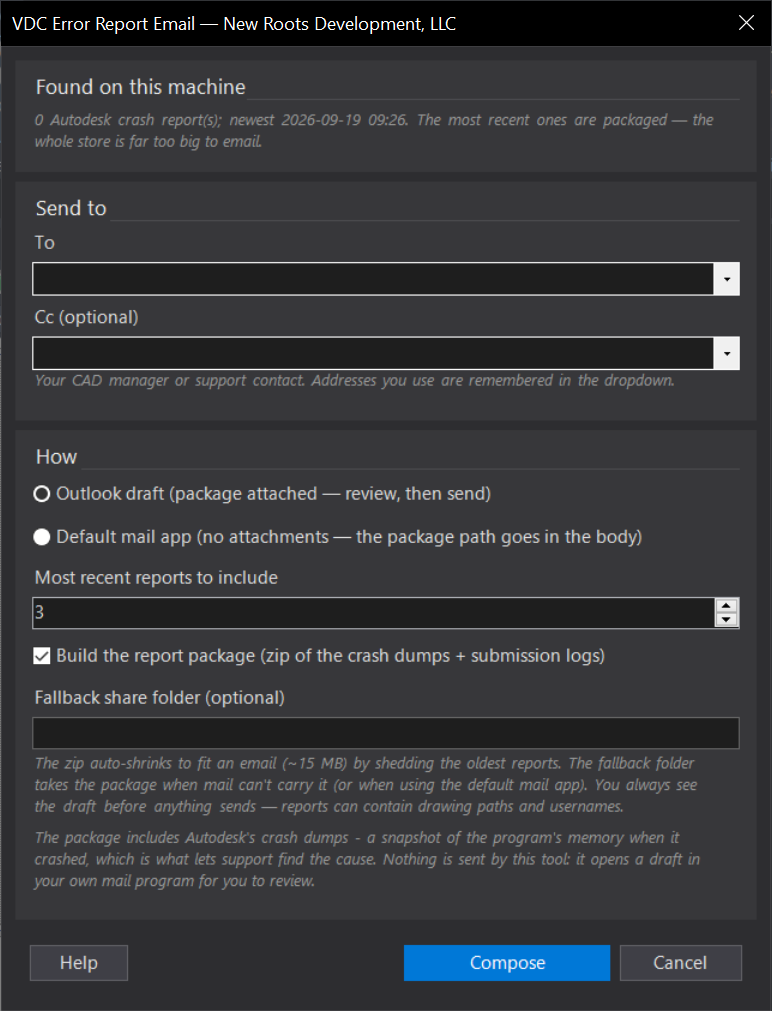
VDCERROREMAILWhen to use it
- Sending a plan set out for review - to an internal/automated reviewer or a colleague.
- The set is too big to email: Upload mode (or an over-20 MB attachment) sends the file to the plan upload service and the email carries the download link.
- You want the recipient, subject, and the plan-set link filled in the same way every time.
How to run it
- Run VDCPLANEMAIL; set the mail client and recipients (first run: confirm the Draft/Final folders).
- Pick Draft or Final, Browse to the plan PDF - its path drops into the body; type the project number.
- Click OK - Create Email; review the draft that opens, then send it yourself. (With 'Send it immediately' set, the button reads OK - Send Email and it goes on click.)
Options
- Mail client: Microsoft Outlook (desktop) or the OS default mail app (mailto:).
- When I press OK: open the draft to review + send (default), or send it immediately (Outlook only).
- Recipients: To + optional Cc, auto-filled (comma/semicolon separated); dropdowns remember the addresses you use.
- Plan file: path-in-body (pick a file) / upload the picked file and put the download link in the body / attach a PDF you pick / attach <drawing>.pdf / none; Draft or Final folder.
- Too big to attach: an attachment over 20 MB is uploaded instead and the download link goes in the body (the saved choice is unchanged).
- Folders: Draft + Final as a relative subpath under the project root (or a full path).
- Message: project number + subject/body templates ({project}/{drawing}/{date}/{planpath}/{projectno}).
Watch out for
- The default mail app opens via a mailto: link, which cannot carry an attachment - it only puts the PATH in the body - and cannot send on its own.
- Outlook composing uses COM automation; if Office blocks it, switch to the default mail app.
- By default the draft is displayed, NOT sent - you review and send it yourself. 'Send it immediately' is opt-in per user and Outlook-only.
- A sent email cannot be recalled: with 'Send it immediately' set, OK sends - there is no second prompt (the button reads OK - Send Email). Check the recipient and template first.
- If anything is missing (no recipient, blank subject, no plan file picked, no PDF found to attach), it opens the draft instead of sending and says why - a submission with no plan set in it still READS normal, so nothing in the message would show the problem.
- The Outlook draft is always its own compose window - Outlook works that way; it will not appear inside the main Outlook window even when Outlook is open. The tool brings it to the front rather than leaving it blinking in the taskbar.
Related: As-Built Record Drawing · Sheet Index + Viewport Audit · QC Status