
The cloud in your profile and section views: a band about the alignment or a slab about the sample line, a class filter, one point per grid cell, drawn through the view's own transform. Refresh after the view moves.
Cloud points kept
Alignment + band
Cloud ground line
What it does
- Profile views: points within the left / right offsets of the alignment at (station, elevation). Section views: points within half the slab of the sample line at (offset, elevation), left negative.
- Classes: ground by default, checkboxes for the rest, noise dropped; an unclassified file falls back to every class and says so.
- Thinned + remembered: one point per cell, cells double to fit the per-view cap; each view's run is stored in the drawing so Refresh and Take off need no questions. CSV in VDC Reports.
Watch for
- The cloud must be in the drawing's coordinates and units; a view that reads NOT DRAWN with nothing in its band is the tell.
- The points do not follow a moved view by themselves - run Refresh.
- It is a display of the cloud, not a surface; check the ground line against survey shots before design.
Dialog
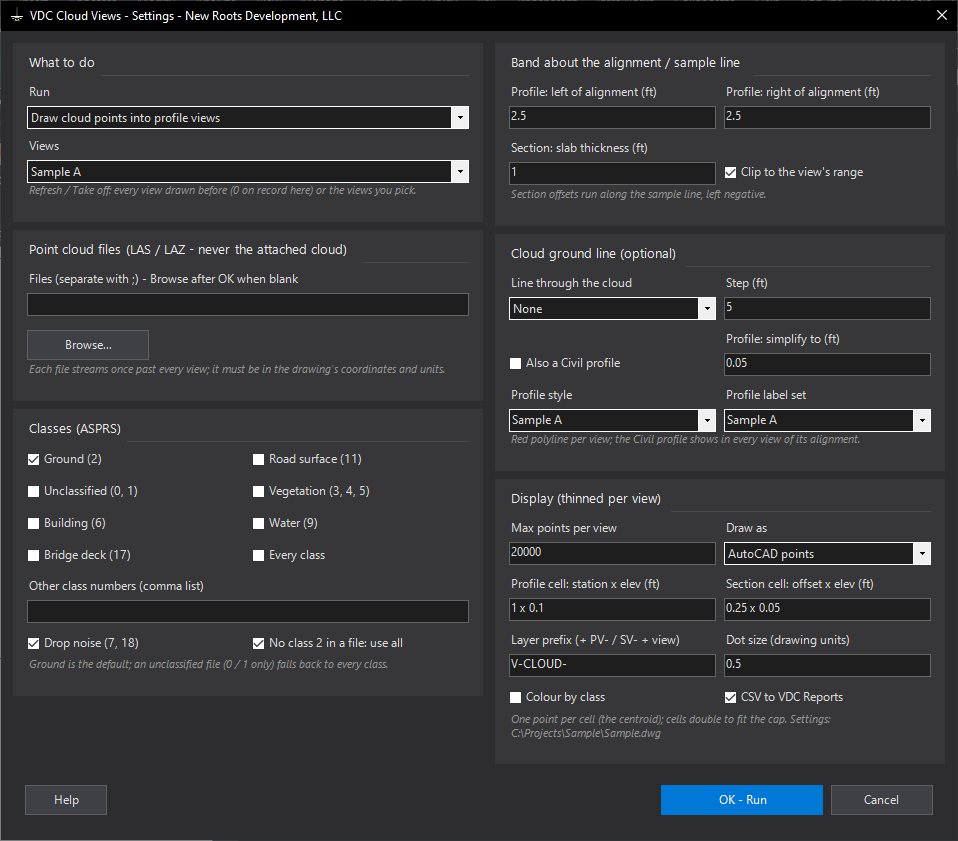
VDCCLOUDVIEWSSettings file:
%APPDATA%\VDC\CloudViews\settings.jsonWhen to use it
- Checking a design profile against what the drone or lidar flight actually saw along the road.
- Seeing the existing ground, curbs, ditches or walls in cross sections before building a surface.
- Comparing an existing-ground surface profile with the raw cloud it was built from.
- A quick existing-ground profile straight from the cloud (the optional Civil layout profile).
How to run it
- Run VDCCLOUDVIEWS; Run = profile views or section views; Views = pick on screen, all, one view, or one sample line group.
- Files: browse to one or more LAS / LAZ tiles (or leave blank to browse after OK).
- Band: left / right of the alignment for profiles (2.5 ft each), slab thickness for sections (1 ft).
- Classes: ground is the default; add road surface, vegetation, buildings or every class as needed.
- OK - pick the views if asked; read the summary (points per view, cell size used, anything not drawn and why).
- After moving a view or changing its exaggeration: run again with Refresh. To remove everything: Take off.
Options
- Band: profile views keep points within the left / right offsets of the alignment; section views keep points within half the slab of the sample line.
- Keep only points inside each view's range: drops points outside the view's station and elevation range (on by default).
- Classes: ASPRS checkboxes plus a free list; noise (7, 18) dropped; a file with no ground class falls back to every class.
- Max points per view / cell sizes: 20,000 per view; profile cells 1 ft x 0.1 ft, section cells 0.25 ft x 0.05 ft; cells double until the view fits.
- Draw as: AutoCAD points (PDMODE sets the look), small solid dots (sized), or one block per view.
- Cloud ground line: lowest return or median per step as a red polyline; profile views can also get a Civil 3D layout profile from it.
Watch out for
- The cloud must be in the drawing's coordinates and units - a view that comes back NOT DRAWN with nothing in the band is the first sign it is not.
- Data provenance: the points come only from the LAS / LAZ files you pick (your flight or survey vendor's data) - nothing is downloaded. The CSV records the files used; keep the vendor's report with the project.
- Thinning shows one point per cell at the centroid of its returns - a display of the cloud, not a measurement. Use the ground-line profile as a starting existing-ground profile and check it against survey shots.
- Ground class only shows ground if the vendor classified it; on an unclassified file every return (trees, cars) is drawn - the summary says when that fallback happened.
- Moving a view does not move the points by itself - run Refresh (the points are AutoCAD entities in the view's old position).
Related: Cloud Slice (Point-Cloud Slabs to Linework) · Ground Thin (Lidar to Ground Shots) · Surface Profiles