
VDCTOOLS is part of Check for Updates (this workstation); the full section follows.
The suite updates itself at sign-in, so the tools change underneath you with nothing on screen to say so. These are the two notices that close that gap: what version am I on, and what changed. Both are dialogs, and both can be turned down from inside the dialog. Find Tool (VDCTOOLS, the Help panel of every VDC tab) is the third piece: a search box over the suite's own ribbon - every button and drop-down item by tab and panel, names and tooltips searched, the commands added since the version this workstation last saw marked NEW; the Where line says tab > panel > drop-down > button, Show on ribbon switches to the tab and flashes the button (1.120.0: the panel turns orange, the button goes Large and pulses for up to 12 s, and a status-bar balloon says where it is in words), double-click or Run starts one. Every ribbon tooltip title carries the command name.
What's New - the automatic one
- Opens by itself the first session on a version this workstation has not seen - the version now running, what changed, and a button to the release page.
- Lists every release between the last one you were told about and the one you are on. A week away comes back as one window with all of them, newest first.
- A fresh install is recorded silently - nobody needs a What's New window for the version they just installed on purpose.
VDCWHATSNEWreplays it for the version you are running, any time.- Turning the announcement off still records what you are on, so switching it back on later does not replay months of releases.
VDCUPDATE - the on-demand one
- Installed on this workstation - the version this session actually loaded, which is not always what is on disk.
- Available on the deployment share - the published version, read from the share's bundle manifest.
- What's new - every release between the two.
- Always checks and always shows an answer, including “you are running the current version” - a check that reports nothing is indistinguishable from a check that never ran.
- On a synced seat there is nothing to do: the new build installs itself at your next sign-in, and the dialog says so. To get it now, close Civil 3D and run
Update.batfrom the share.
Settings (in the dialog)
- Check for a newer version: Every startup / Once a day (default) / Once a week / Once a month / Never.
- Show me what's new when a new version arrives: on by default - this is how new commands stop appearing unannounced.
- Skip ‹version›: offered only when an update is waiting. Silences that one version; anything newer still gets a notice.
- Settings: env
VDC_UPDATE_SETTINGS, default%APPDATA%\VDC\Update\settings.json- point every seat at one file to set the house policy once. - Ribbon: Help panel on every VDC tab → Check for Updates.
Where the numbers come from
- Installed version: the installed bundle's own
PackageContents.xml. - Published version: the share's bundle manifest, located by the
VDC_TOOLS_UPDATE_SOURCEenv varInstall.batsets. Unset (a standalone seat) and the automatic check stays quiet. - Release notes:
whats-new.json, shipped inside the bundle beside the manifest - the installed copy describes what you are running, the share's copy what you are about to get. Both notices read correctly with the network down. - A standalone seat with no share can be pointed at an HTTPS release feed (
FeedUrlin the settings file). That is the only path here that touches the internet, and it is empty out of the box. VDCUPDATEanswers for this workstation;VDCVERSIONSanswers for every workstation.
Dialog

VDCUPDATE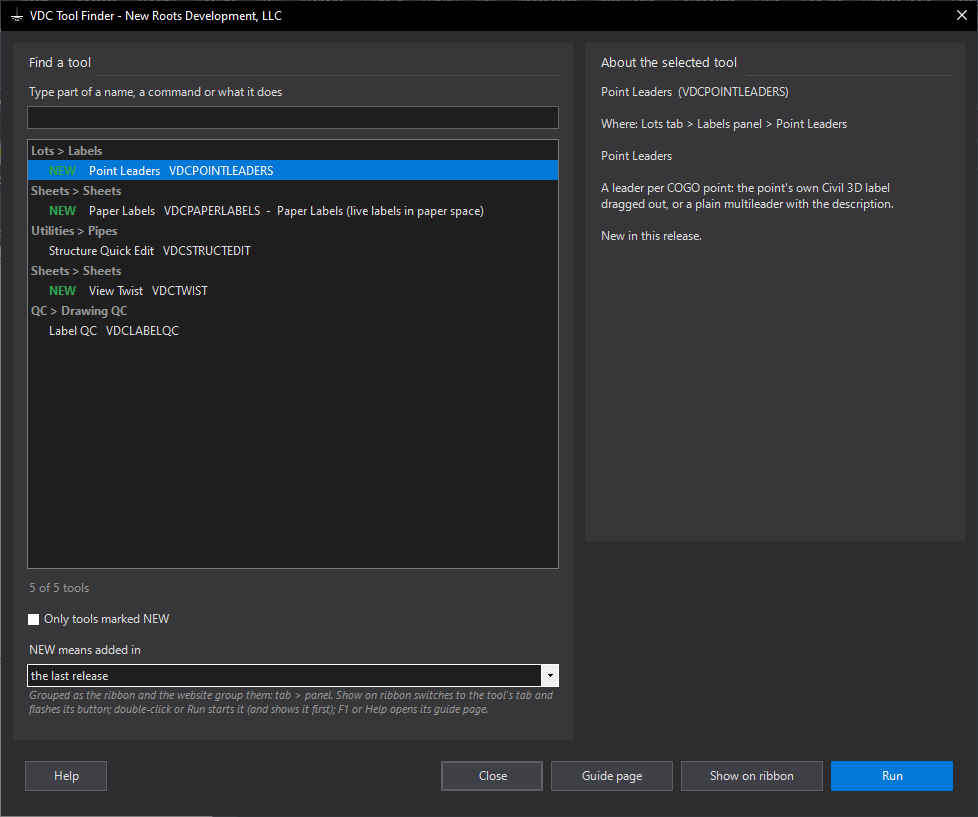
VDCTOOLSVDCWHATSNEW - No dialog - opens the bundled What's New page.When to use it
- You want to know whether the behavior you are seeing is fixed in a newer build.
- Before reporting a problem - so the version number is in the report.
- You dismissed the What's New window and want to read it again (VDCWHATSNEW).
- The notices are appearing more or less often than you want.
How to run it
- Run VDCUPDATE, or click Check for Updates on any VDC tab's Help panel.
- Read the two version lines: what this workstation loaded, and what is published on the share.
- Read What's New - it lists every release between the two, newest first.
- Set how often to look, then click OK. Cancel leaves the settings alone.
- What's New Online opens the release page in your browser for the full write-up.
Options
- Check for a newer version: Every startup, Once a day (the default), Once a week, Once a month, or Never.
- Show me what's new when a new version arrives: the What's New window on the first session after an update lands. On by default - this is how new commands stop appearing unannounced.
- Skip <version>: shown only when an update is waiting. Silences that one version; anything newer still gets a notice.