The drainage arrows drafters place by eye, computed from the surface.
What it does
- Grid mode carpets an area at your spacing; pick mode places arrows exactly where you click.
- Each arrow aligns to the surface's downhill direction at its point; optional slope-percentage text.
- Arrow blocks or plain arrows, size and layer in the dialog.
Worth knowing
- Arrows are static linework: re-run after a regrade.
- Flat cells are skipped and counted, never guessed.
- Settings:
%APPDATA%\VDC\DrainArrow\(envVDC_DRAINARROW_SETTINGS).
Dialog
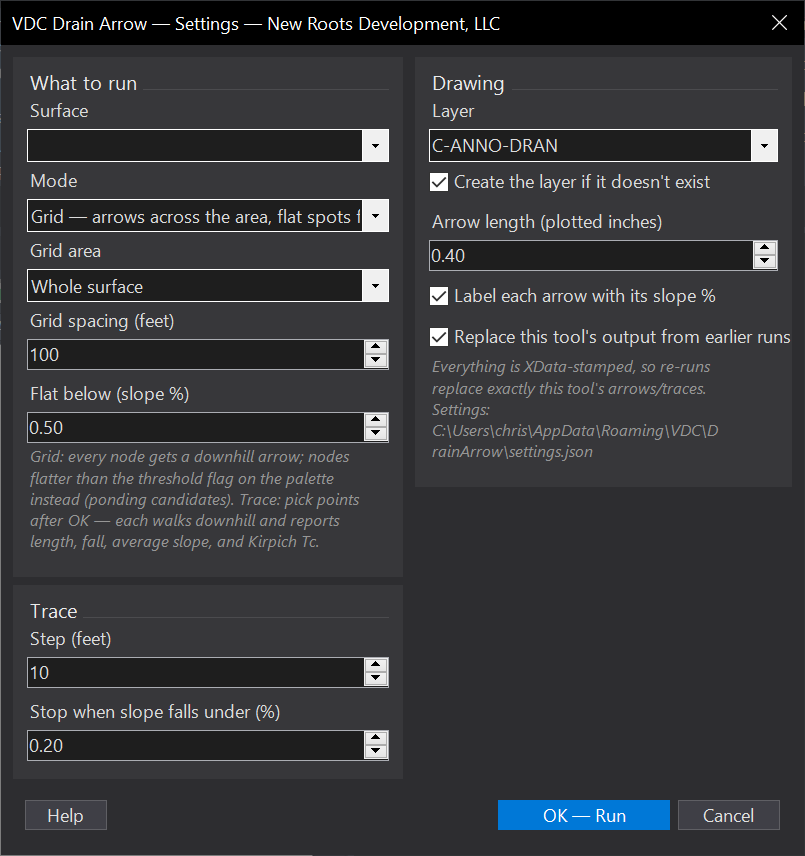
VDCDRAINARROWWhen to use it
- Grading plan annotation - arrows that actually agree with the proposed surface.
- QC-ing a lot or road for the drainage pattern the surface really drains.
How to run it
- Run VDCDRAINARROW, pick the surface and arrow style/size.
- Choose grid mode (set the spacing) or pick points one after another.
- Review - arrows point downhill from each sample; slope text optional.
Options
- Grid or picked: carpet an area at a spacing, or click exactly where arrows belong.
- Slope text: optional percentage label on each arrow.
Watch out for
- Arrows are static linework - re-run after a regrade (they don't follow the surface).
- Flat cells (no meaningful slope) are skipped and counted, not guessed.
Related: Auto-Grade Lots · Smooth Surface · Pond QC (Geometry)